
How to Create a Moonrise or Moonset Alert for the Full Moon
A full moon rising near sunset or setting near sunrise can be one of the more reliable moon photography opportunities to plan around. The timing is still easy to miss, though, especially if you are watching several locations or waiting for cloud and weather to cooperate.
This guide shows a simple way to create a PhotoSignal alert for near-full moonrise or moonset opportunities. For more background on moon timing in general, see Moonrise and Moonset Alerts for Photography.
How the moon works, briefly
Moonrise and moonset do not happen at the same time every day. They shift later from one day to the next as the moon moves through its cycle. Around the full moon, moonrise usually happens close to sunset and moonset usually happens close to sunrise, which is why both ends of the day can work well for landscape and seascape photography.
That timing is useful because the landscape may still hold colour and detail while the moon appears near the horizon. If the moon rises too late or sets too early, the foreground can become much darker. If the event is too far from the light window, the moon may feel less connected to the scene.
What PhotoSignal is tracking
A practical full-moon alert is not only looking for the calendar day labelled "full moon". It is looking for a useful shooting window.
- Moon illumination at 99% or higher: this catches the near-full window around the exact full moon. Using 99% rather than only 100% avoids missing useful mornings or evenings where the moon is effectively full but the exact peak falls at another time of day.
- Moonrise or moonset timing: for the classic full-moon landscape look, you usually want moonrise close to sunset or moonset close to sunrise.
- Smart Check: use the "Moonrise/moonset near this time" Smart Check to find moonrise or moonset events near the time window you care about.
- Optional weather checks: cloud, rain, haze, wind, or other conditions can decide whether the opportunity is worth acting on.
How to create the alert
Create an alert from scratch
- Open the location you want to watch. Choose a saved location with a horizon or composition where moonrise or moonset can matter. Direction and foreground alignment still depend on the exact place.
-
Create a new alert.
Click Create Alert and give it a clear name, such as "Full moonrise near sunset" or "Full moonset near
sunrise".
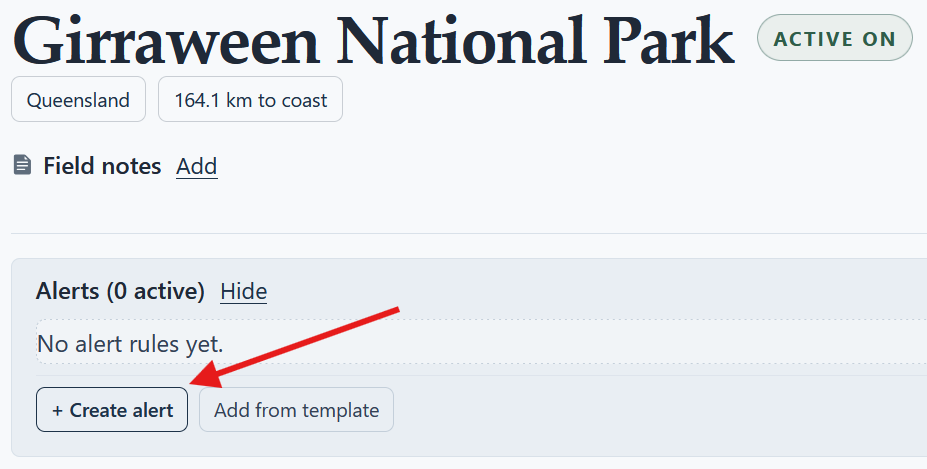
Start from a saved location, then create an alert for the conditions you want PhotoSignal to watch. - Add a moon illumination condition. Set moon illumination to greater than or equal to 99%. This keeps the alert focused on full or near-full moon opportunities without being so strict that it only matches the exact instant of full moon.
-
Add the Moonrise/moonset Smart Check.
Add the "Moonrise/moonset near this time" Smart Check so the alert is tied to a moonrise or moonset event
near the useful window.
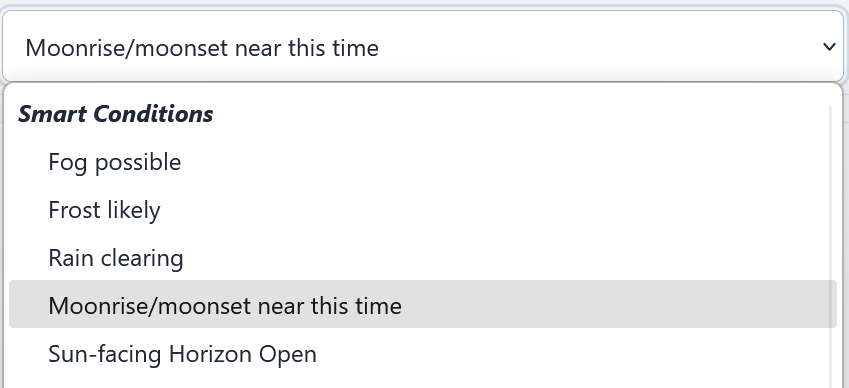
Moonrise/moonset smart condition selection in the alert builder. - Set the timing window around sunrise or sunset. Use a sunset window for moonrise, or a sunrise window for moonset. Start with a reasonable window, then adjust it for your location and style. A wider window can catch more possibilities. A tighter window keeps the alert more selective.
-
Adjust timing offsets for the look you want.
Sometimes you may want the moon only during the daytime part of sunrise or sunset, while there is still
enough light on the landscape. In that case, use the timing window offsets to favour the daylight side of
the window rather than the darker twilight side.
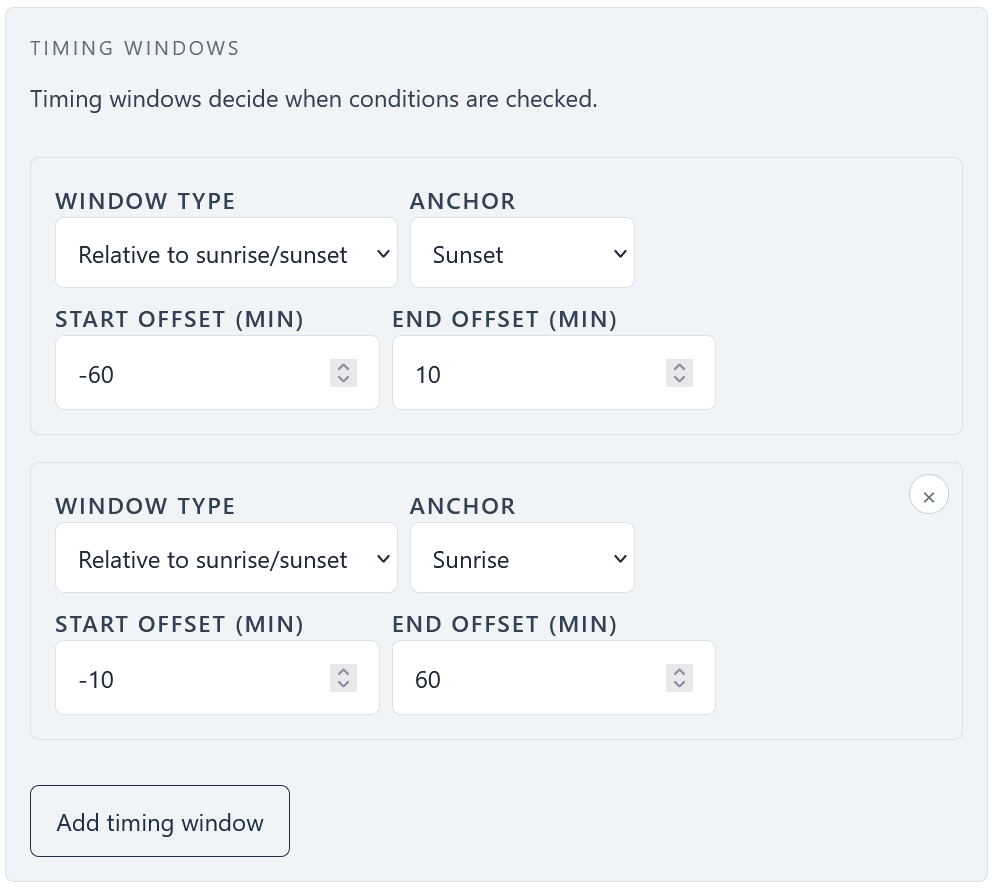
Moonrise/moonset timing window with slight preference towards the daylight. -
Add cloud or weather limits if they matter.
If you only want clearer moon chances, add cloud limits. If wind, rain, access, or marine conditions matter
for the location, add those too.
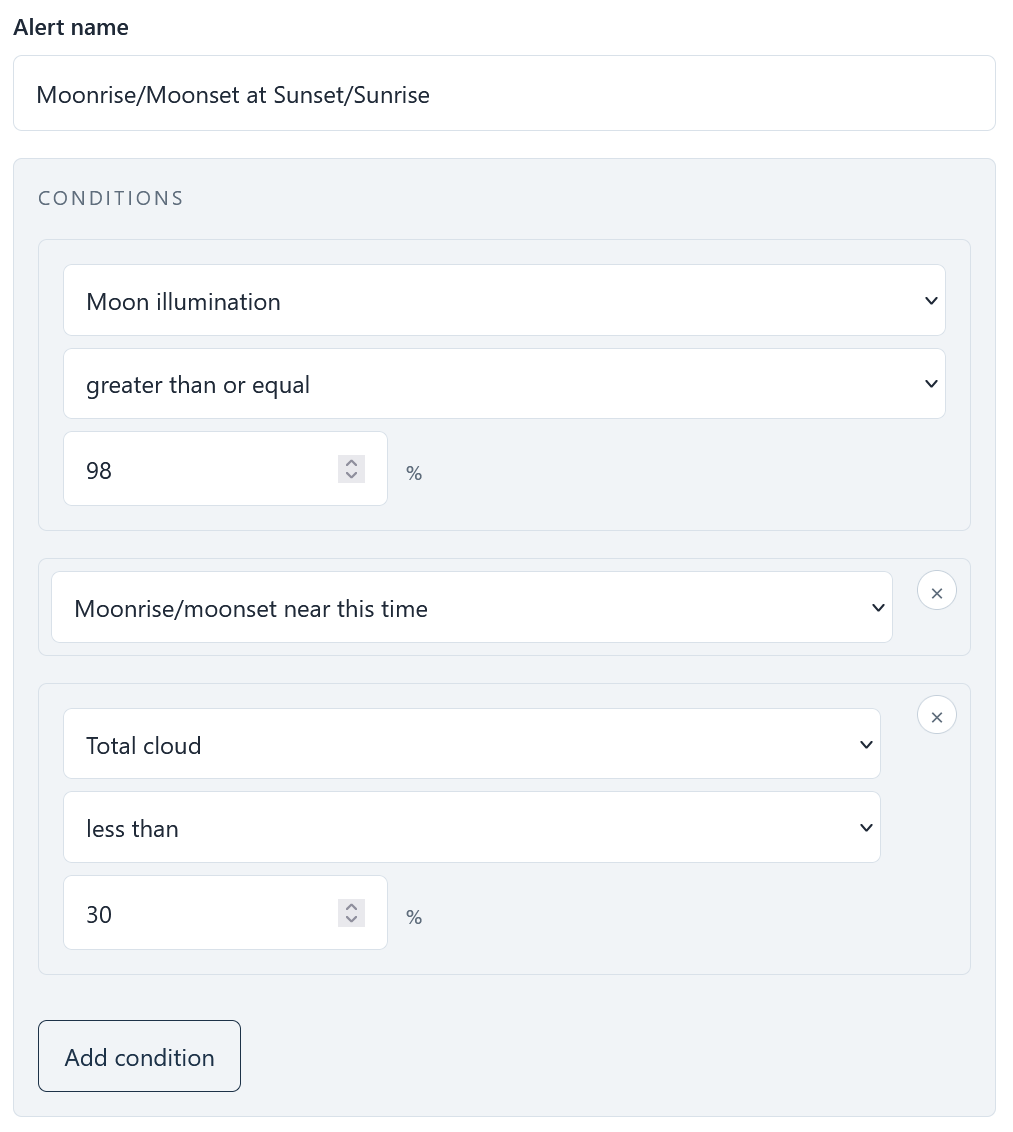
Final moonrise/moonset alert could look like this. - Save and tune after a few results. If the alert fires too often, tighten the timing or weather conditions. If it rarely fires, widen the timing window or remove conditions that are not essential.
Use a pre-built template
For a quicker starting point, use the pre-built template called "Moonrise/Moonset at Sunset/Sunrise". Apply it to your location, choose the moon event and timing window that match the shot you want, then review the illumination condition and any weather conditions before saving.
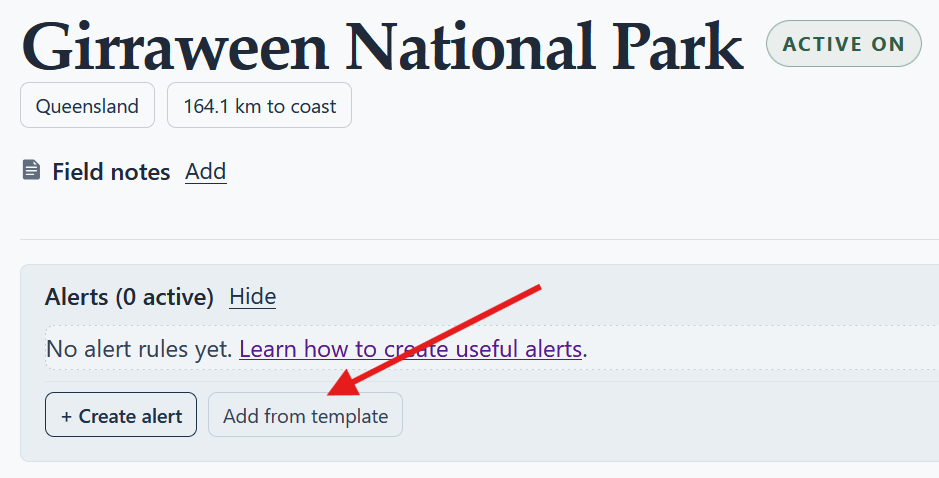
Templates are a starting point, not a final answer for every location. If you want the moon to appear only while there is still daylight around sunrise or sunset, adjust the timing offsets after applying the template.
Availability
Moonrise, moonset, and moon illumination alerts are available on all PhotoSignal plans. Paid plans can still be useful if you want more saved locations, more alerts, or a longer alert history, but the core full-moon alert setup is not restricted to paid users.
Conclusion
A good full-moon alert is specific, but not brittle. Track near-full illumination, use the "Moonrise/moonset near this time" Smart Check, and tune the timing around sunrise or sunset for the locations you actually shoot. PhotoSignal can handle the repeated checking, while you keep the creative decisions where they belong.