Understanding PhotoSignal Alert Notifications
PhotoSignal notifications are designed to help you notice photography windows without having to manually check every saved location. They are planning signals, not weather warnings or safety alerts.
A notification means one of your alert rules matched, changed, or no longer matches the forecast closely enough to keep watching.
The three notification stages
There are three stages of notifications that PhotoSignal sends as the forecast changes and an alert rule goes from not matching to matching and back again. These stages are: upcoming, imminent, and cancellation.
Upcoming notifications
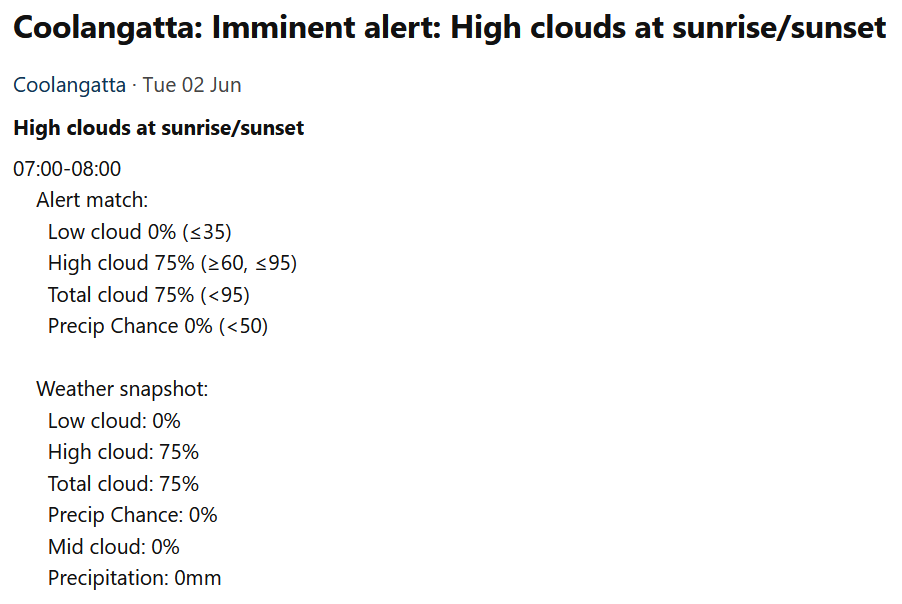
An upcoming notification is the early heads-up. It is sent when a future alert window looks promising 24 hours ahead, giving you enough time to plan.
Use it to decide whether the window is worth watching, whether you need to charge batteries, adjust plans, or check the location in more detail.
Imminent notifications
An imminent notification is the closer check. PhotoSignal checks the forecast again 3 hours before the alert window and notifies you if the conditions still match.
This is the more practical “should I still consider going?” signal.
Cancellation notifications
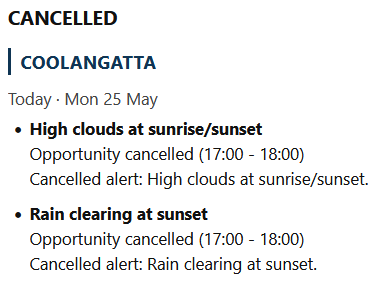
If an alert matched in the past and you received an upcoming notification, but during the second check 3 hours ahead, the forecast no longer matches, you will get a cancellation notification.
Cancellations help you avoid chasing a forecast that looked promising earlier but has since fallen apart.
Why PhotoSignal checks more than once
Forecasts change. A sunrise that looks promising the day before can turn into flat overcast by morning. A rain-clearing window can disappear. Fog can weaken. Wind can shift.
That is why PhotoSignal checks alert windows multiple times. The early check helps with planning. The later check helps confirm whether the opportunity still exists. If the forecast no longer matches, a cancellation can save you from acting on stale information.
Digest vs immediate notifications
There are two types of notifications: immediate and digest.Immediate notifications
Immediate notifications are sent as individual alert updates. Use this if you want to know about each matching alert as soon as PhotoSignal sends it.
Digest notifications
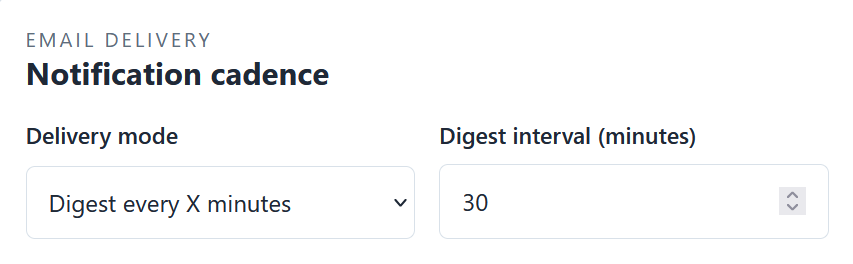
Digest mode groups notifications together. Instead of receiving every alert separately, PhotoSignal waits for the selected digest delay and sends a summary of notifications received during that period.
Which one should you use?
Use immediate notifications if you monitor only a few alerts or want faster updates. Use digest mode if you monitor many locations and prefer grouped summaries instead of a stream of separate emails. The downside of the digest mode is that you receive imminent updates later due to the digest delay, which can reduce the time you have to react to them.
What grouped notifications contain
Notification emails may include the location, alert name, matching time window, forecast snapshot, relevant conditions, and watch-outs such as rain chance, wind, cloud, tide, or other signals, depending on the alert type.
The goal is to give you enough context to decide whether to check the app or investigate the location further.
Why an alert might not send a notification
- The alert conditions did not match during the timing window.
- The forecast changed before the later check.
- The alert is paused or deleted.
- Email notifications are disabled.
- Digest mode grouped the notification with others.
- Your plan or alert limits may affect what is monitored.
- The timing window is beyond 24 hours.
How to reduce notification noise
- Use more precise timing windows instead of broad all-day windows.
- Make broad alerts more specific by adding another condition.
- Remove conditions you do not actually care about.
- Use digest mode if individual notifications feel too frequent.
- Pause alerts that are seasonal or only useful for certain locations.
- Review alerts that trigger often but rarely lead to useful decisions.
Where to change notification settings
Notification preferences are available in Account Settings. You can choose digest or immediate notification behaviour, adjust email preferences, and review subscription-related settings from there.