
How to Create a Colourful Sunrise or Sunset Alert
Colour at sunrise or sunset is one of the classic photography hopes, and fortunately, you can create an alert for it. A little cloud can be useful. Too much low cloud can block the light. A blocked horizon can weaken or stop the colour reaching the clouds you care about.
This guide shows how to build a practical PhotoSignal alert for colourful sunrise or sunset potential using cloud-layer conditions, timing windows, and optional horizon context. For a broader explanation of surrounding sky patterns, see Sky Context for Sunrise and Sunset Photography.
What matters for sky colour
A useful colour alert is usually looking for cloud that can catch low-angle sunlight, while avoiding a sky that is completely blocked. The exact thresholds vary by location, season, forecast model, and your taste so treat these as a starting point rather than a promise.
- High cloud: often the most useful layer for early or late colour because it can catch light when the sun is still below, or just below, the horizon.
- Mid cloud: can also work well, especially closer to sunrise or sunset, but it usually needs a cleaner path for the light.
- Low cloud: can add mood, but it often blocks the light if it sits on the horizon. Low cloud is most useful when there is a horizon gap toward the sun.
- Total cloud: helps keep the alert away from flat overcast. You usually want enough cloud to catch light, but not a fully blocked sky.
- Sun-facing horizon: an open horizon toward the sun can matter as much as the cloud above your location. The "Sun-facing Horizon Open" Smart Check can help with this around sunrise or sunset. It is often best as a separate alert, because a blocked horizon can still leave high cloud with enough height to catch colour. The Sun-facing Horizon Open guide explains how to use it without making your main colour alert too strict.
Timing is not the same for every cloud layer
High cloud can light up well before sunrise or well after sunset because it sits high enough to catch sunlight while the ground is still in twilight. A wide first timing window, such as one hour before sunrise to one hour after sunrise, and one hour before sunset to one hour after sunset, is a sensible starting point.
Mid cloud usually matters closer to the event itself. Low cloud colour, when it happens, is often closer again and more dependent on a gap near the horizon. If your alert is too noisy, narrow the timing window before adding a pile of extra conditions.
How to create the alert
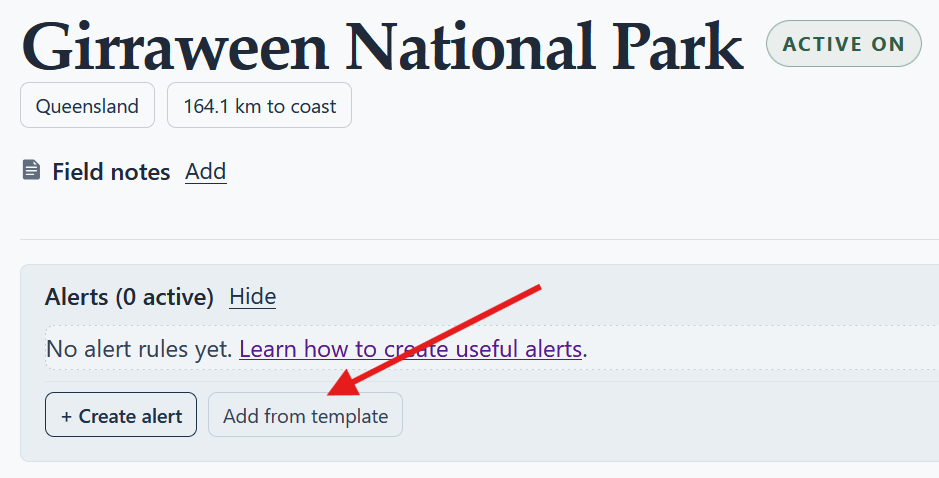
Start from the template
The quickest starting point is the built-in template called "Colour Potential at Sunrise/Sunset". It watches for high cloud, limited low cloud, and total cloud below a heavy-overcast level around both sunrise and sunset. Apply it to a saved location, then review the thresholds and timing windows before saving.
Create an alert from scratch
- Open the location you want to watch. Choose a saved location where sunrise or sunset colour would actually matter. Coastal areas, ridgelines, lakes, lookouts, and wide skies often behave differently from forested valleys or city locations with blocked horizons.
-
Create a new alert.
Click Create Alert and give it a clear name, such as "Colourful sunrise" or "Colourful sunset".
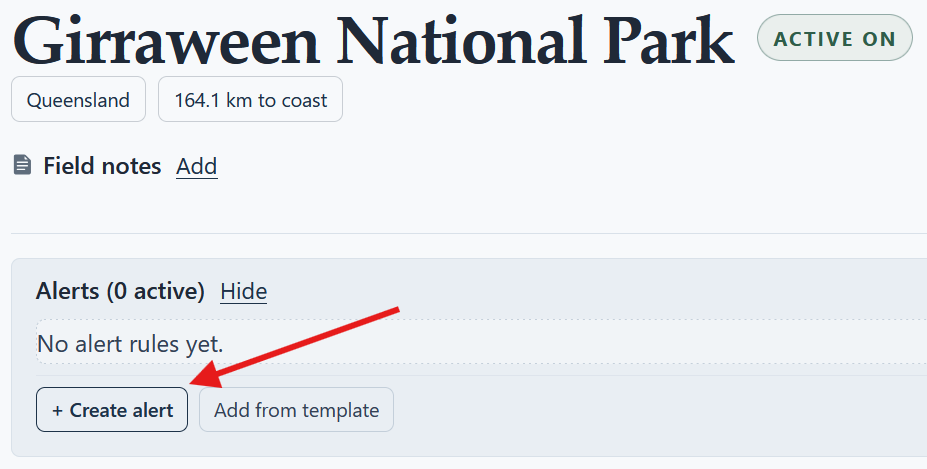
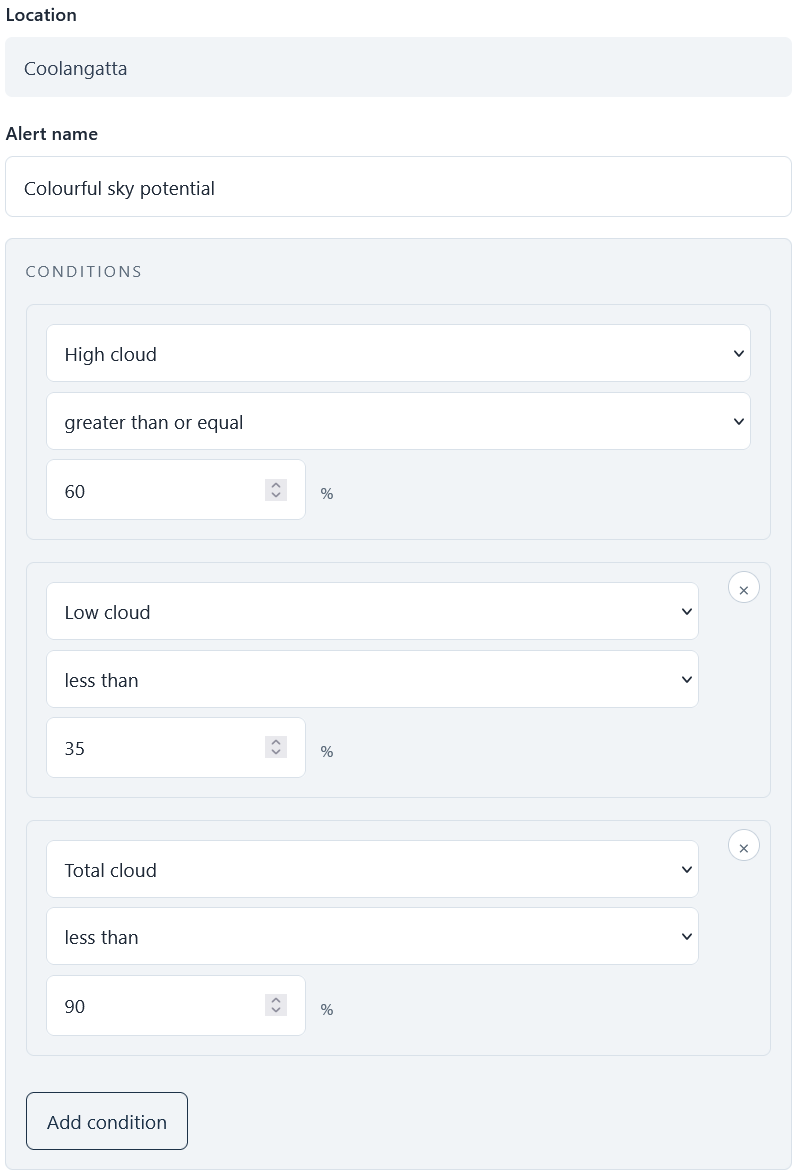
Start from a saved location, then create an alert for the colour conditions you want PhotoSignal to watch. - Add a High cloud condition. Use "High cloud" as the main colour signal. A first version might require high cloud above a moderate or strong threshold, then you can tune it after seeing how often it matches at that location.
- Limit Low cloud. Add "Low cloud" below a chosen limit so the alert does not fire every time the horizon is likely to be blocked. Be careful with this value near the coast or mountains, where low cloud can be very local.
- Keep Total cloud below a heavy-overcast level. Add "Total cloud" below a limit that avoids flat overcast. This is not about demanding a clear sky; it is about leaving room for light to break through.
- Add Mid cloud only if it helps. "Mid cloud" can be useful, but do not make the first alert too strict. If your location often gets colour from mid-level cloud, add a mid-cloud range after you understand the basic alert behaviour.
-
Set timing around sunrise, sunset, or both.
For high cloud, start with a wider anchored range around sunrise and/or sunset. If you only shoot one side
of the day at that location, use only that timing window. If the same conditions are useful at both times,
use both timing windows in one alert.
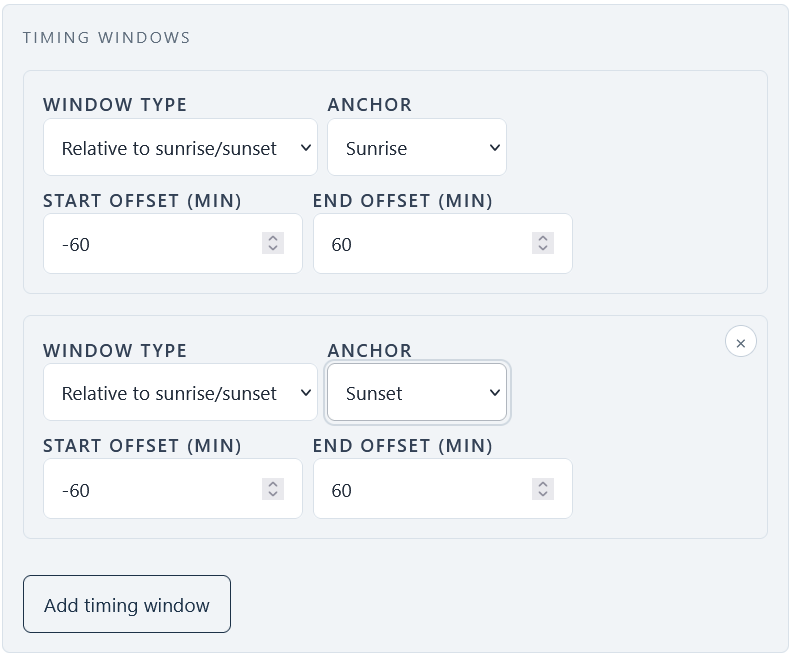
Timing windows work like alternatives: the alert can match in the sunrise, sunset, or another custom window you add. - Consider the Sun-facing Horizon Open Smart Check. Use this check as a standalone alert rather than a required condition in your main colour alert. Sometimes the horizon may be blocked while high cloud still catches colour, depending on the height and position of the cloud layers. Treat the result as extra context when deciding whether the window is worth watching. See how to use the Sun-facing Horizon Open condition for the step-by-step setup.
- Save and tune after real results. If the alert fires too often, tighten the cloud thresholds or timing. If it rarely fires, loosen one condition at a time. Forecast cloud layers are imperfect, so tune for useful signals rather than perfection.
Use Sky Context close to the event
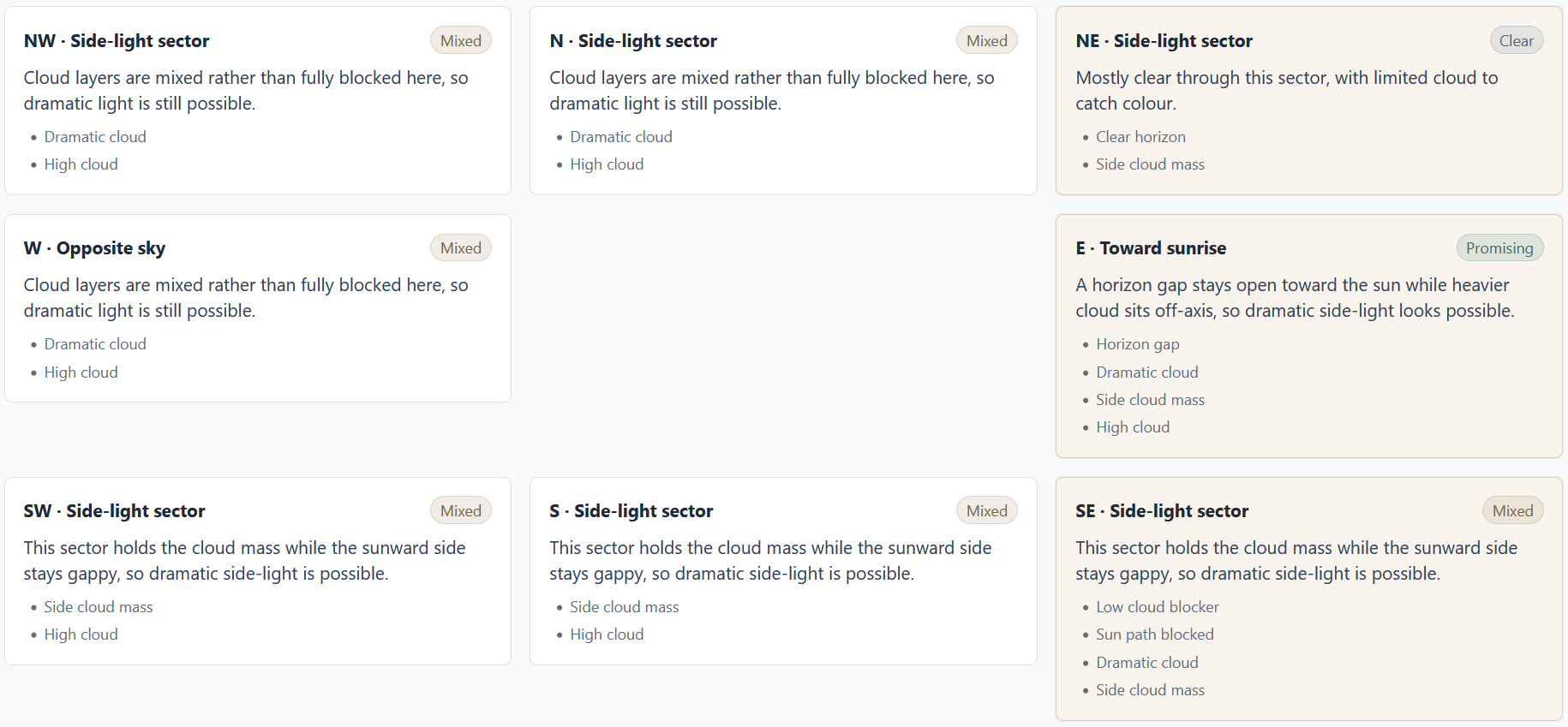
A point forecast can say there is high cloud at your saved location, but the light may still be blocked by low cloud toward the sun. Sky Context helps interpret nearby cloud, horizon gaps, and surrounding weather, but it is most useful closer to the event, after an imminent notification or as close to the shoot time as practical. That is when the surrounding sky pattern is more likely to reflect what you are about to see.
Sky Context is available on the Chaser plan. Treat it as a final interpretation step rather than a replacement for the basic colour alert.
Availability
The basic condition filters used in this guide, including "High cloud", "Mid cloud", "Low cloud", "Total cloud", and sunrise or sunset timing windows, are available on all PhotoSignal plans. The "Colour Potential at Sunrise/Sunset" template is also a starting point for these basic cloud-layer checks.
Conclusion
A good colour alert combines enough cloud to catch light with enough openness for the light to reach it. Start with "Colour Potential at Sunrise/Sunset" or build your own alert with "High cloud", limited "Low cloud", sensible "Total cloud", and sunrise or sunset timing. Then let real results teach you how that location behaves.